
1.) Log-in to your account
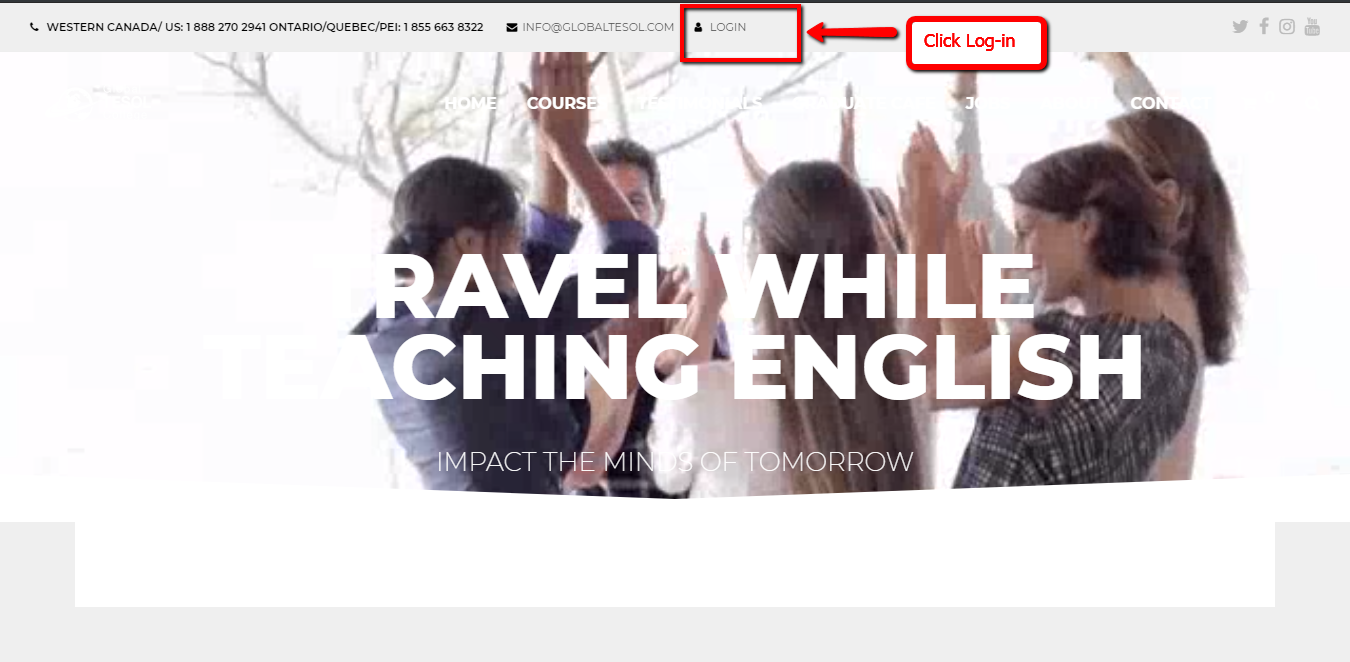
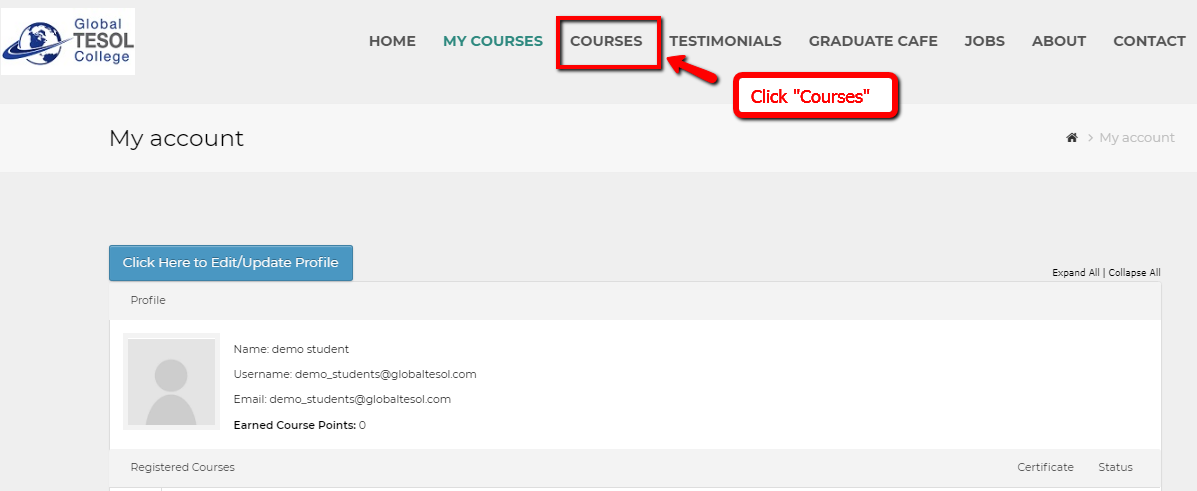
2.) Click “Courses” Menu.
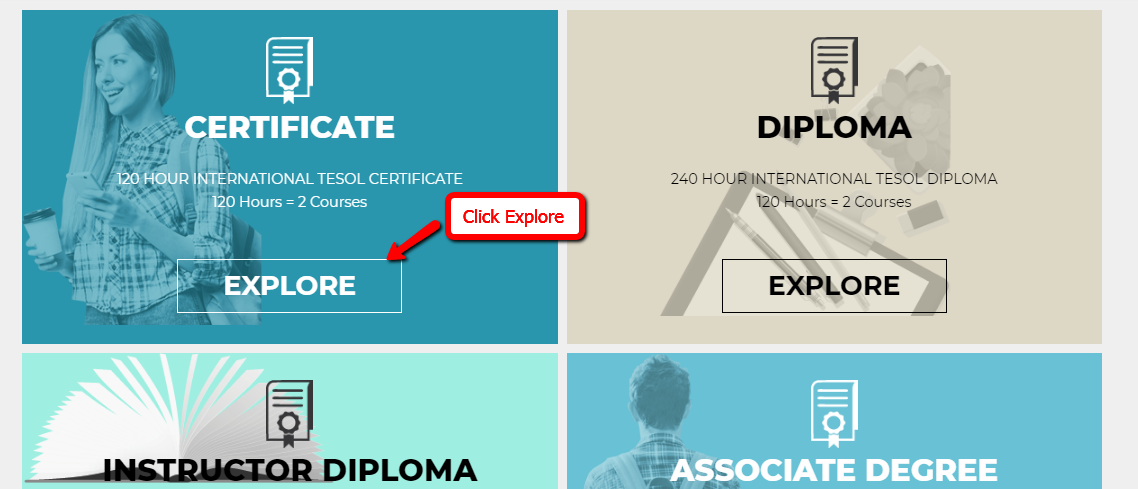
3.)Choose any program or courses of your choice. Click “Explore”.
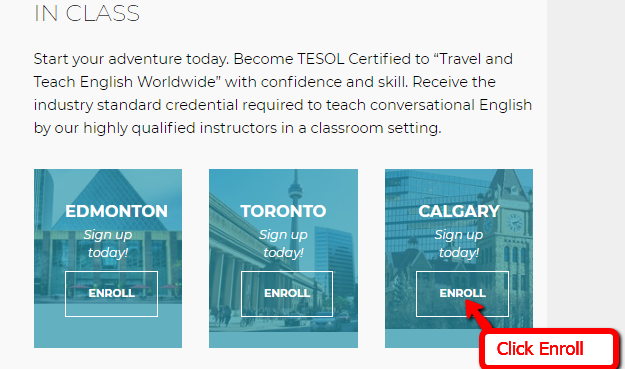
4.) There will be two class options for certain courses/programs: “Online” and “In Class”.

Now in this case, We are going to explore “In Class”. You will see different boxes for each “In Class” locations. Each locations with “Enroll” button.
5.) Choose where do you want to have an “In Class” session by clicking “Enroll”.
ENROLLMENT DETAILS
1.) There are different dates/schedules of availablity for each “In Class” locations. Scroll down to see “Date” Options then click the drop-down menu and then Choose any of the available date options.
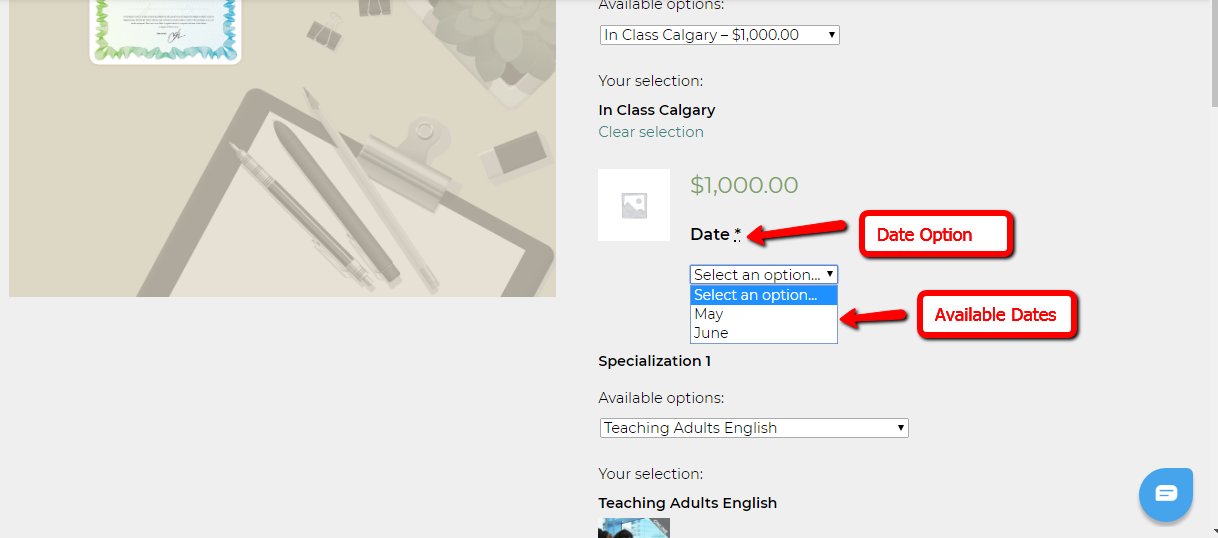
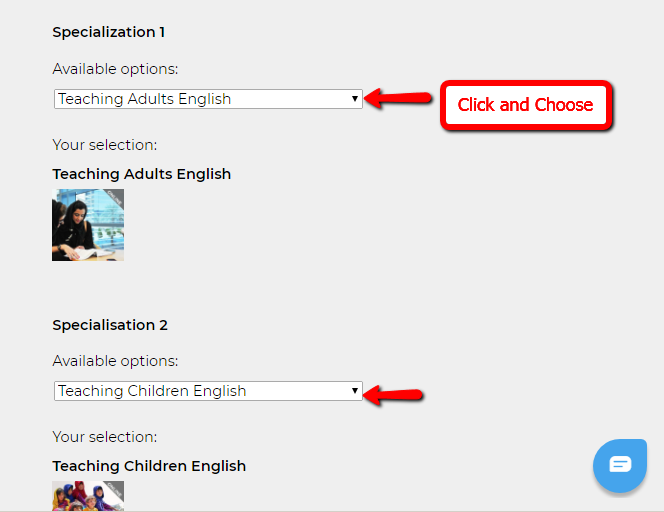
2.) Each course programs offers a different number of Specializations. Just choose your preferred specializations in specializations drop-down.
3.) If you want to avail for the hard copies of your chosen courses, you can do so by ticking the check boxes of corresponding hard copies.

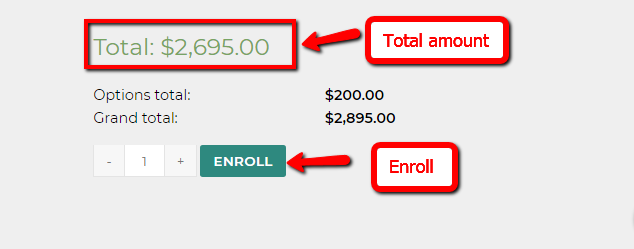
4.)You can see below the running total amount of your purchases.
5.) If you’re done, Click “Enroll”.
CHECKING OUT
1.) Just fill out all the billing details in the check-out form.

2.) Choose your preffered mode of payment by ticking the radio buttons.
3.) Click “Continue to Payment”.

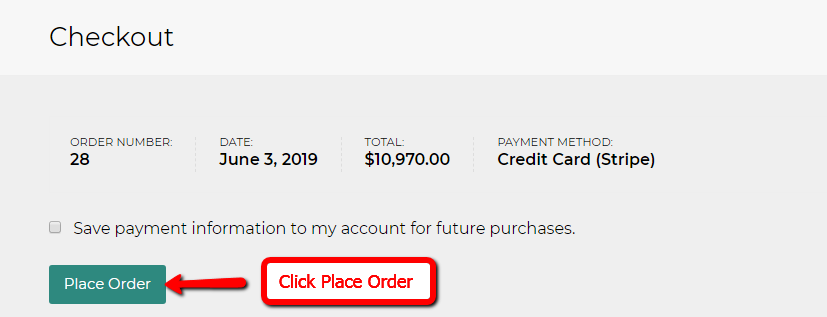
4.) Finally, Click “Place Order” to complete the process.
5.) An invoice of your purchases will be sent to your email.